 OverStandard
Opening your profile
Click your name at the top right and choose Profile.
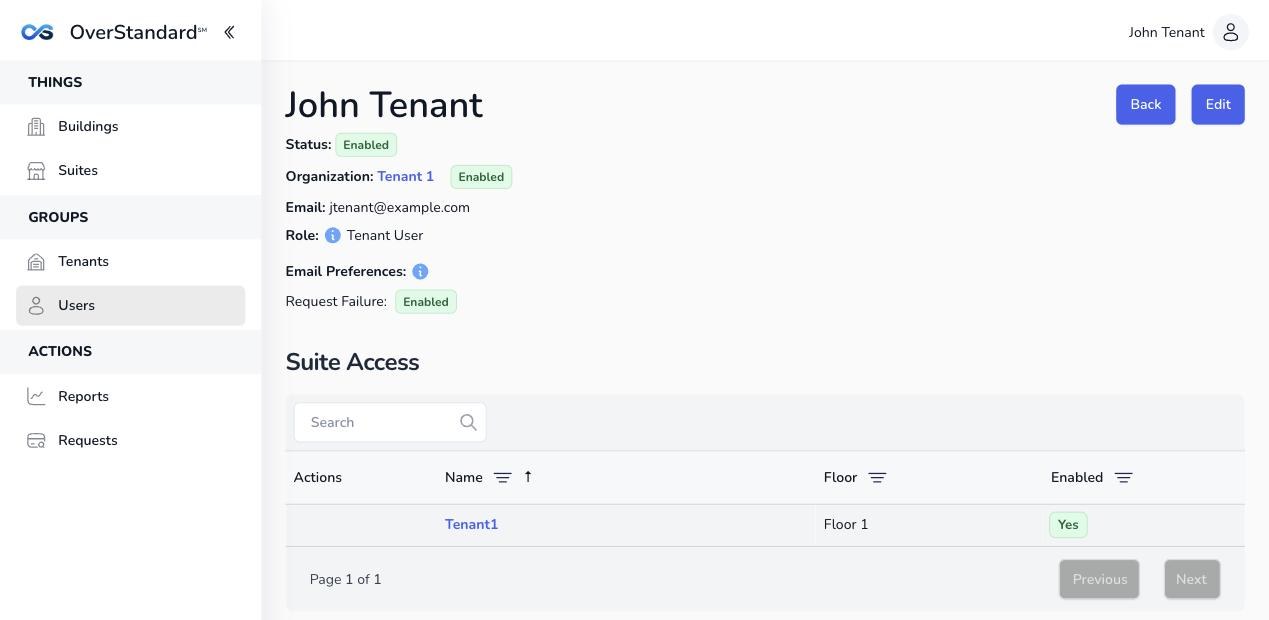
| Field | Meaning |
|---|---|
| Status | Whether your account is enabled. A disabled account can’t sign in. |
| Organization | Your tenant company, and whether it’s enabled. |
| Your username. This can’t be changed. | |
| Role | Tenant User or Tenant Manager. Managers get extra tools; see Inviting and managing your team. |
| Email Preferences | Which notifications you receive. |
| Suite Access | Every suite you may create requests for. If a suite isn’t listed here, it won’t appear on the request form. |
Editing your details
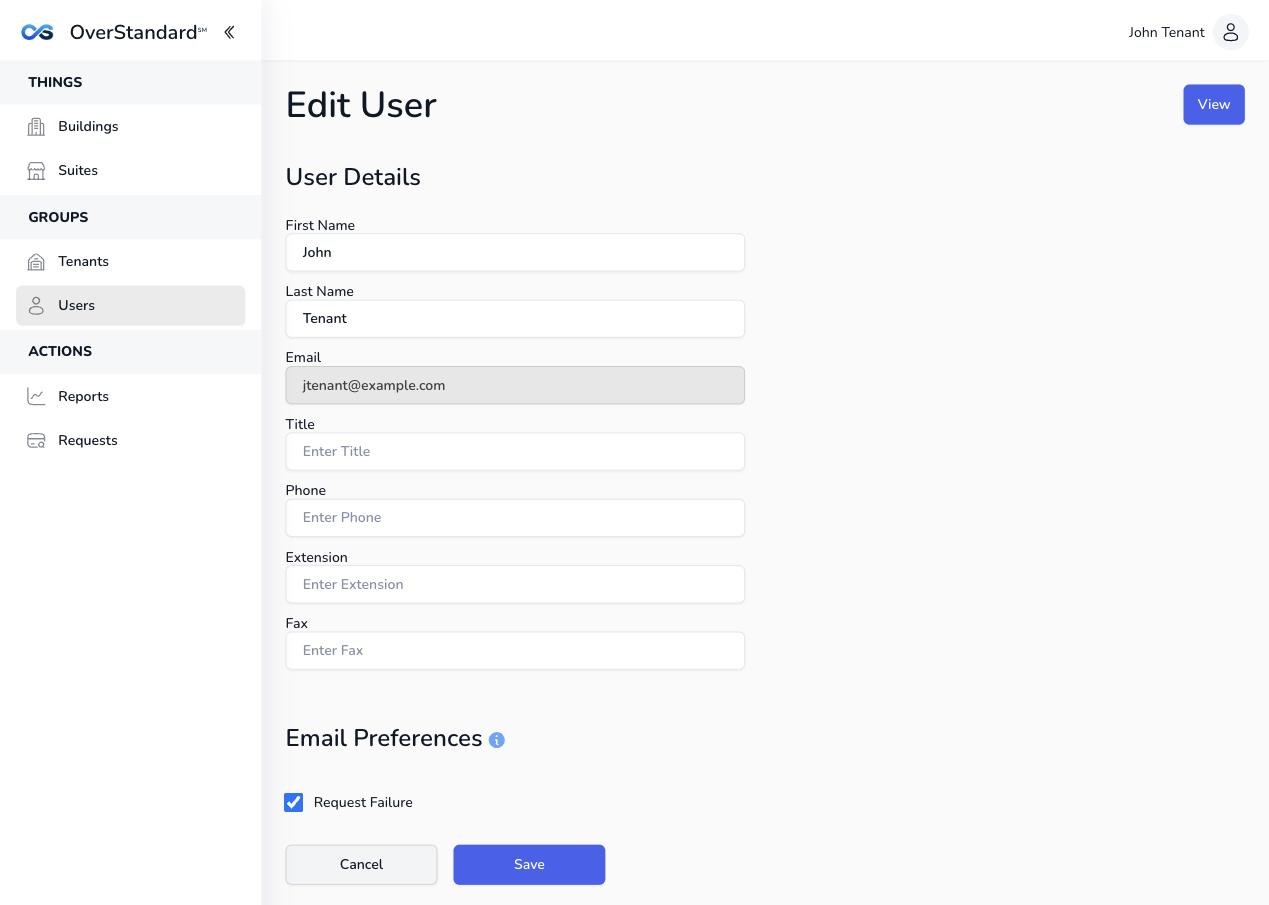
Click Edit and you can change your first and last name, title, phone, extension and fax. Save when you’re done, or Cancel to discard.
Your email address is your username. It’s the address your invitation was sent to. This can’t be changed.
Email preferences
Every email preference is on by default, including Request Failure, which emails you when one of your requests doesn’t complete. You can turn any of them off from your profile, but Request Failure is worth leaving on. A failed run means the space may not have been conditioned, and the sooner you know, the sooner you can call the building. See Request statuses and history.
Changing your password
There’s no password field on your profile. Sign out and use Forgot Your Password? on the sign-in page to set a new one; see Signing in for the first time.
Suite access
Tenant users can see their suite access but not change it. If you need access to another suite, your tenant manager can grant it; see Controlling suite access.