 OverStandard
This article is for Tenant Managers. If your profile shows Role: Tenant User, these controls won’t appear; ask your manager instead.
Your user list
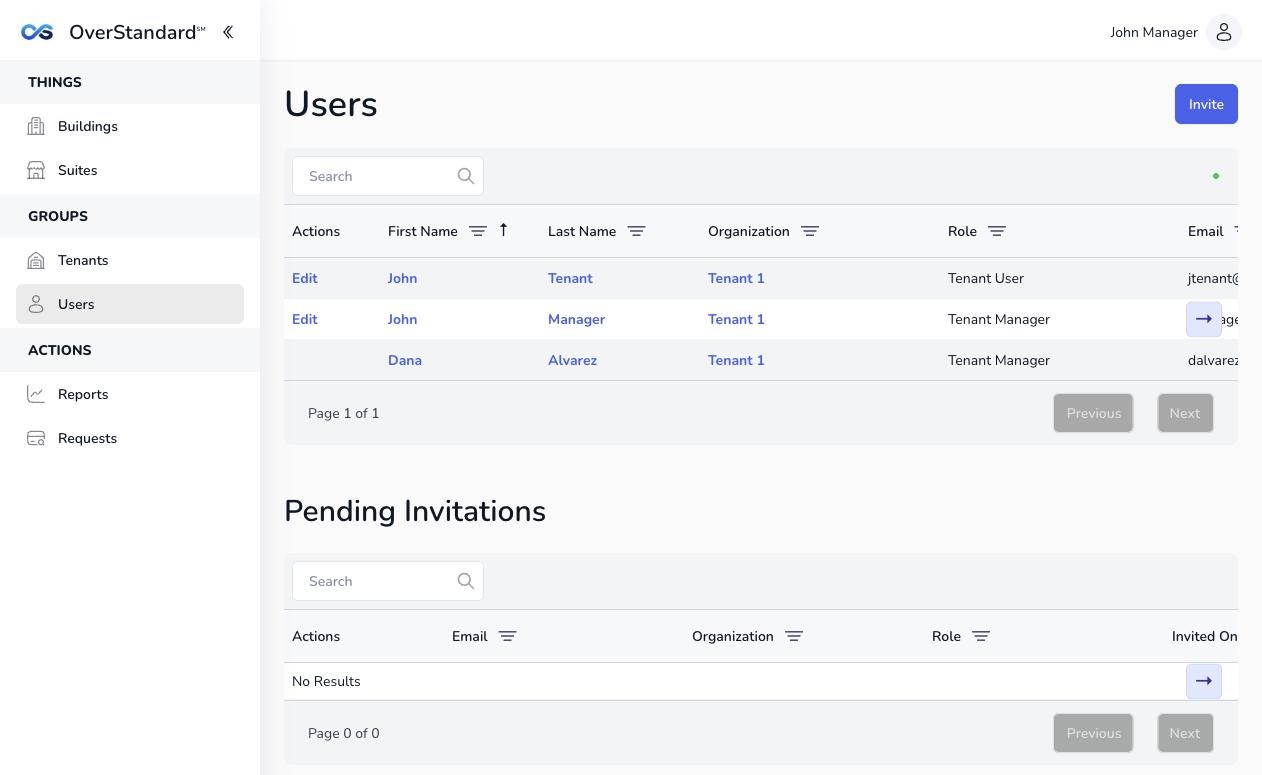
Open Users in the sidebar. Managers see two tables: everyone who has an account, and everyone who has been invited but hasn’t signed up yet.
Sending an invitation
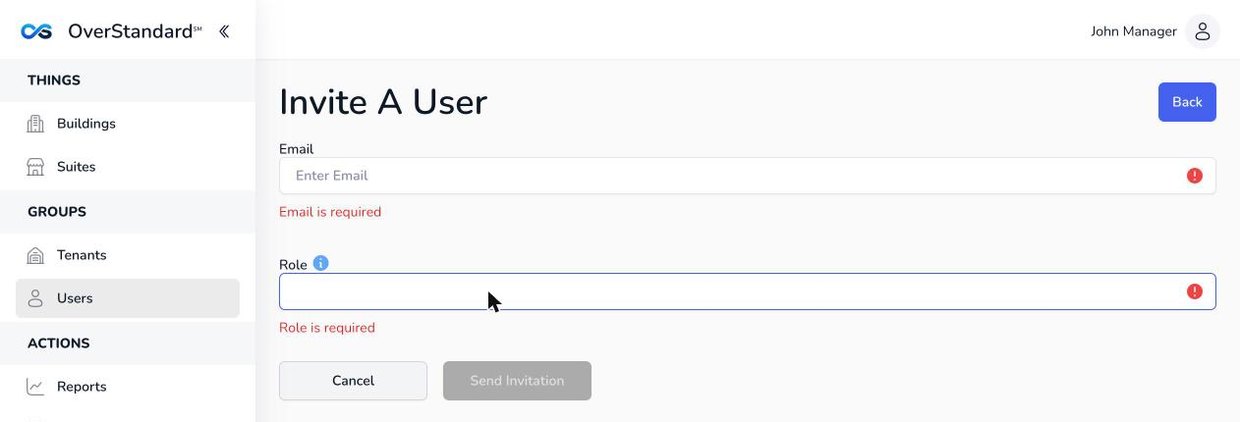
Click Invite at the top right of the Users page.
Enter their email address. This becomes their username and can’t be changed, so check it carefully.
Choose a role: Tenant User or Tenant Manager. Most people should be Tenant Users; see Who can do what.
Pick the building, then the tenant. These two fields appear once you choose a role. If your organization occupies one building you’ll have one option in each.
Choose their suite access if you’re inviting a Tenant User: check the suites they should be able to create requests for. Tenant Managers automatically have access to every suite, so the suite selector doesn’t appear for them.
Click Send Invitation.
You don’t enter their name. The invitee fills in their own name, password and contact details when they sign up.
Pending invitations
Until someone completes sign-up they sit in the Pending Invitations table, showing their email, organization, role and the date they were invited. Two actions are available on each row:
| Action | What it does |
|---|---|
| Resend | Emails the invitation again. The existing link stops working, so if they’re mid-signup, tell them to use the new email. |
| Revoke | Cancels the invitation. This can’t be undone; you’d have to invite them again from scratch. |
Both ask for confirmation first.
“I never got the email.” Check spam and quarantine before resending: a resend invalidates the original link, so if they find the first email afterwards it won’t work.
Editing a colleague
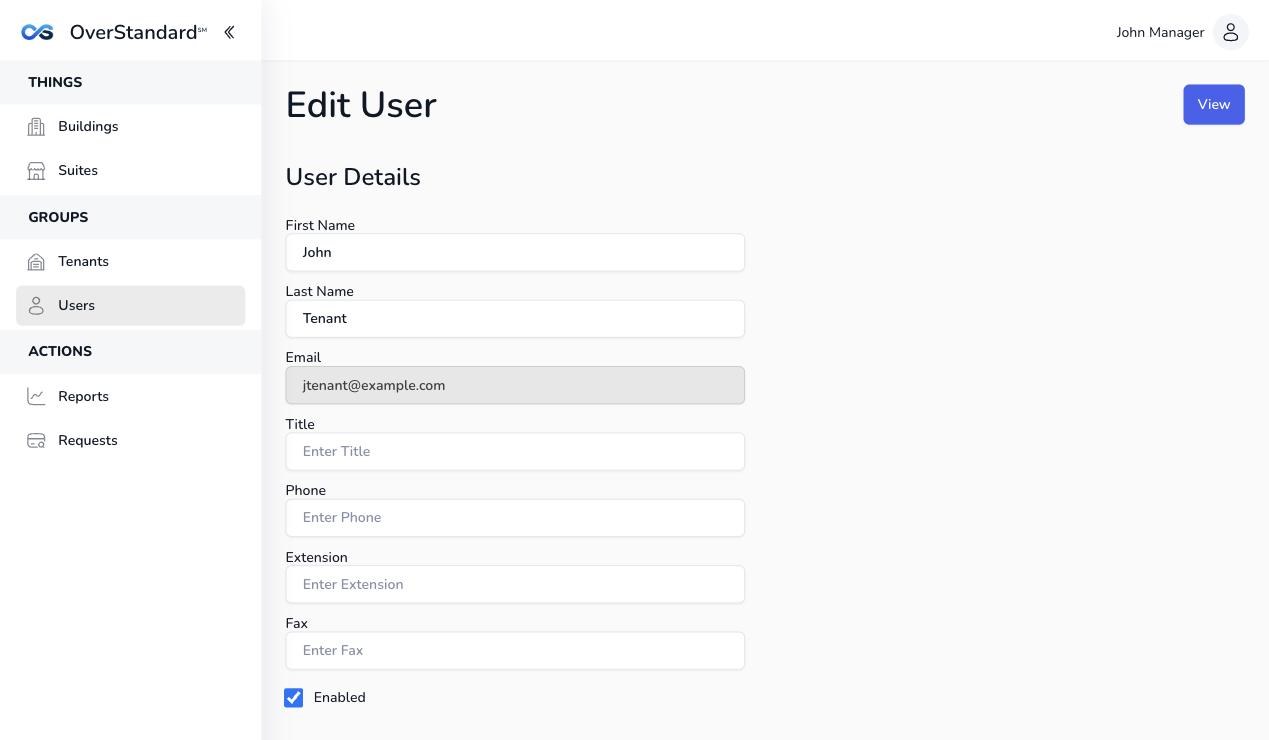
Once they’ve accepted, click Edit beside their row. You can change their name, title, phone, extension and fax, adjust their email preferences, set their suite access, and enable or disable the account. Their email address stays fixed.
Who you’re allowed to edit
The Edit action only appears for yourself and people whose role sits below yours. As a Tenant Manager that means you can edit Tenant Users and your own profile, but not other Tenant Managers. If a peer needs changing, they can do it themselves, or contact support@overstandard.com.
When someone leaves
Uncheck Enabled on their record rather than leaving the account live: a departing employee shouldn’t be able to book after-hours services your company gets billed for. Their past requests stay in execution history for billing either way.
Keep at least two managers. Managers can’t edit each other, so if your only manager leaves nobody can invite users or grant suite access, and you’ll need OverStandard support to step in.