 OverStandard
This article is for Tenant Managers. If your profile shows Role: Tenant User, these controls won’t appear; ask your manager instead.
Why it matters
A user only sees suites they have access to on the Create Request form. If a colleague reports that their suite isn’t in the list, this is almost always why.
Tenant Managers have access to every suite. They get it automatically, so suite access is only chosen for Tenant Users, and the suite selector isn’t shown when you edit a Tenant Manager. You can set a Tenant User’s suite access when you invite them, or at any time afterwards; see Inviting and managing your team.
Granting access
Open Users and click Edit beside the person.
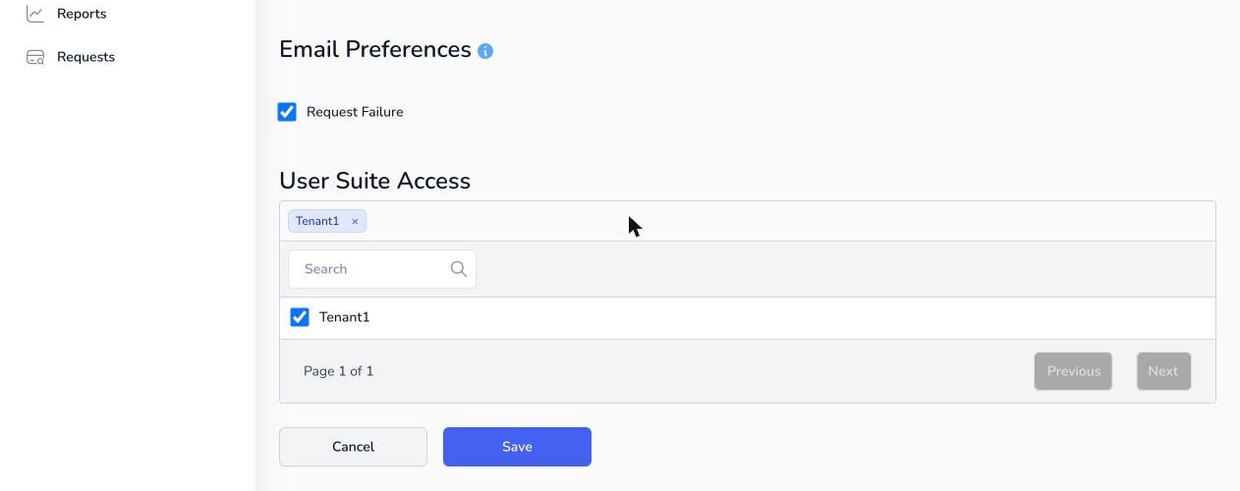
Scroll to User Suite Access.
Check the suites they should be able to request for. Selected suites appear as chips at the top of the box; the × on a chip removes one. Use the search field if your organization occupies many suites.
Click Save. The change applies immediately: they don’t need to sign out and back in.
Reviewing from the other direction
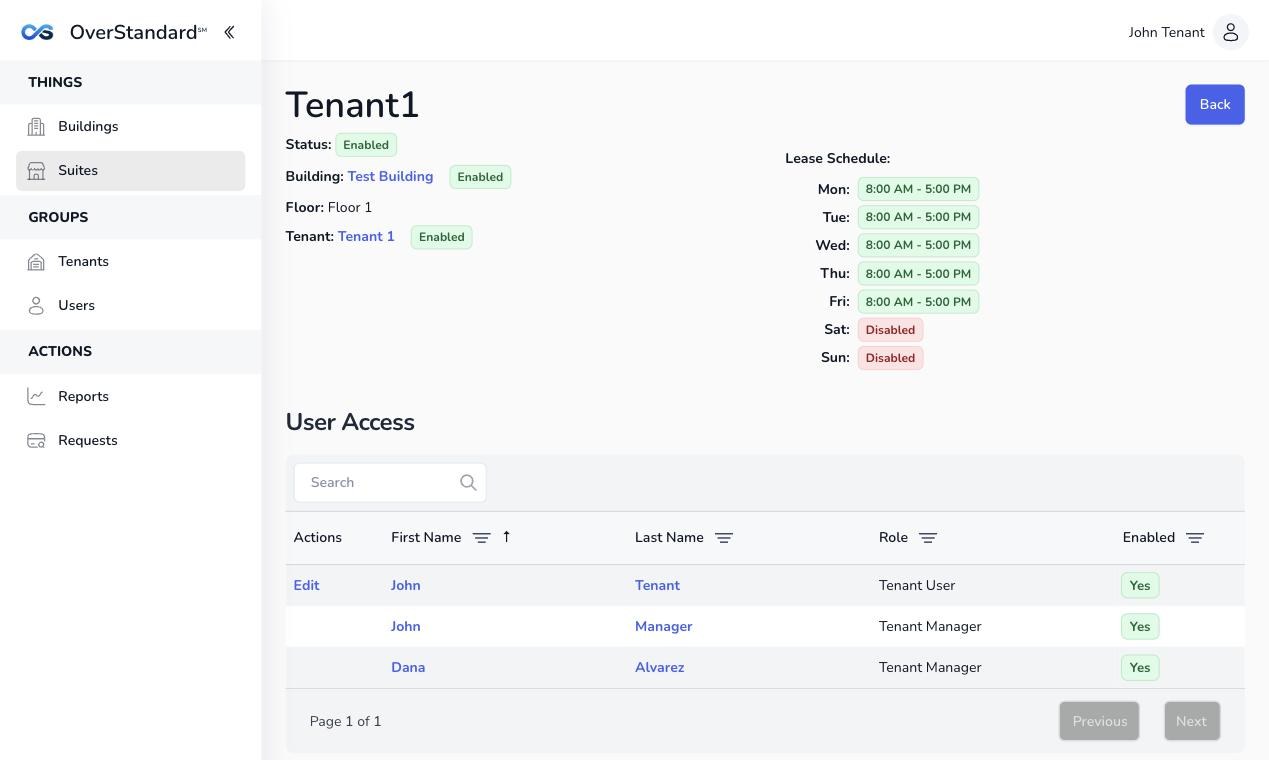
Open Suites and click a suite. The User Access table lists everyone who can request for it, with their role: the useful direction when you’re auditing rather than onboarding. The same page shows the suite’s lease schedule and its services.
Good practice
- Grant the minimum. Most people only need the suite they sit in.
- Review when people move desks. Changing floors should mean changing access.
- Clear access when someone leaves, as well as unchecking Enabled.
You can only grant access to suites your organization occupies. If a suite you expect isn’t listed, it isn’t assigned to your tenant; that’s a conversation with your property manager.