 OverStandard
Start a request
Go to Requests in the sidebar and click Add at the top right. (The Requests Quick Start card on the home page gets you to the same list.)
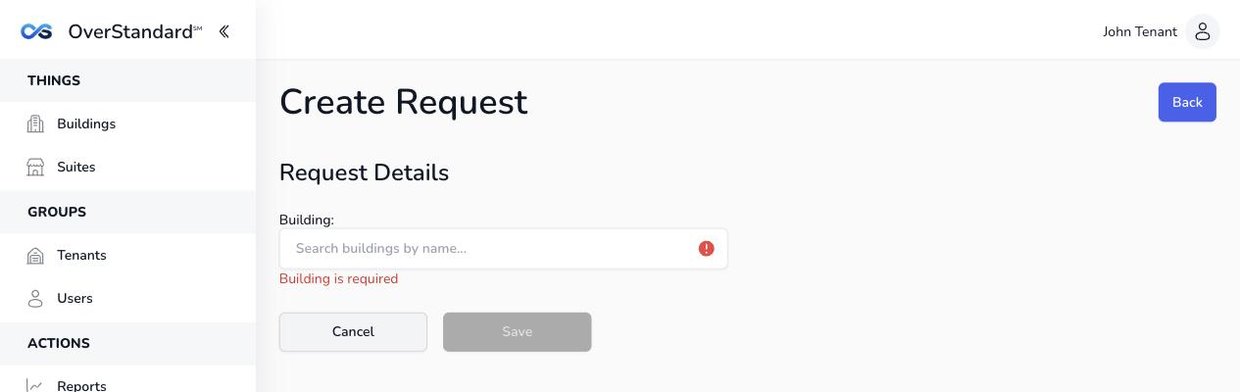
Fill it in
The form reveals itself one step at a time; each answer determines what you can pick next.
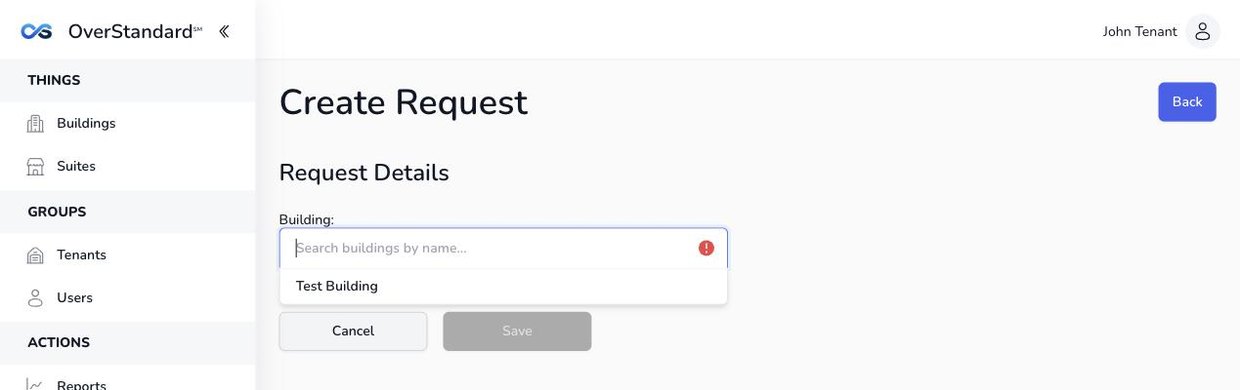
Building. Start typing, or click the field to see the buildings you have access to. Most people only have one.
Suite. Only suites your account is entitled to will appear. If the suite you need is missing, that’s a permissions matter; see the note below.
Service. The services configured for that suite: HVAC, lighting, and whatever else your building has integrated. Each one carries its own rate and duration limits.
Recurring? Choose No for a one-time request. (Yes opens a different set of fields; see Setting up a recurring request.)
Start Date and Start Time. Click the date field to open the picker. Times are in the building’s time zone.
Duration. Entered as hours and minutes. Each service sets its own minimum and maximum run time, and the form will tell you if you go outside them.
Check the Hourly Cost shown underneath. It’s the rate your building has recorded for that service. You can’t edit it; it’s there so you know what you’re committing to.
Save. The request is created and appears in your Requests list.
Can’t see the suite or service you expect? You can only request for suites your account has been given access to, and some services are restricted to tenant managers. Your tenant manager can check both, or open Suites › your suite to see the services listed for it.
What happens next
A new request starts as Pending and moves to Scheduled once it’s accepted. At the start time it goes Active, and when the run finishes it lands on Completed. You don’t have to do anything in between; the list updates itself.
Request statuses and history explains each stage, including what to do if one comes back Failed.
Double-check the date before you save. Requests are scheduled in the building’s local time, and a confirmed request may be billable even if nobody uses the space. Canceling is easy, but do it early.