 OverStandard
This article is for building teams. It describes the Building User role, held by property-management staff, not by tenants.
The tenant list
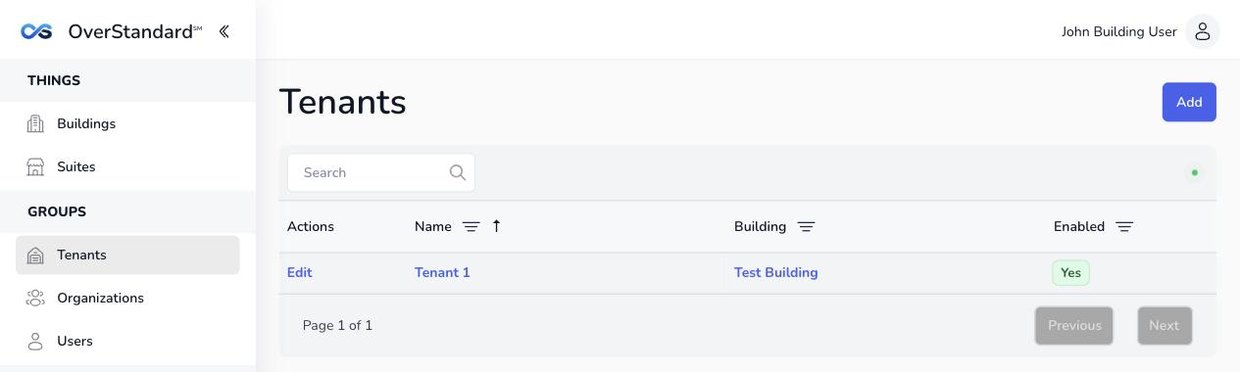
Open Tenants in the sidebar. Each row shows the tenant’s name, its building and whether it’s enabled.
Adding a tenant
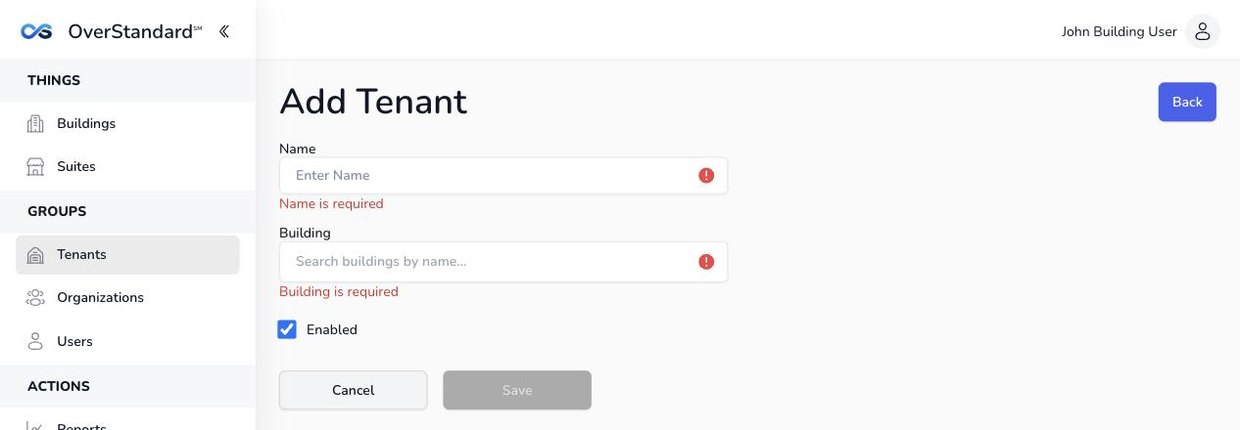
Click Add at the top right.
Name: the company name as you want it to appear on reports and invoices.
Building: search and select. A tenant belongs to one building.
Enabled: leave checked. Unchecking blocks the tenant’s users from signing in.
Save.
Order of operations matters. Create the tenant, then assign it to a suite (Setting up a suite), then invite its users (Inviting tenant users). Inviting a tenant user requires an existing tenant to attach them to.
Editing a tenant
Click Edit beside the row to rename it or change its enabled state.
Disabling a tenant
Unchecking Enabled stops that tenant’s users from signing in; they’re told their organization is not enabled. Use it when a lease ends. Their historical requests stay in execution history for billing.
Disabling a tenant is a blunt instrument. Every user in that company loses access immediately. If you only need to stop one person, disable that user instead.