 OverStandard
The sidebar
Everything you can reach is grouped into three sections:
| Section | Links | What it’s for |
|---|---|---|
| Things | Buildings, Suites | Reference information about where you are: addresses, time zones, lease hours, holidays. |
| Groups | Tenants, Users | Your own organization and the colleagues who share the account. |
| Actions | Reports, Requests | The two things you actually do: schedule after-hours services, and pull usage. |
The « button at the top of the sidebar collapses it if you want more room.
The home page
Home gives you two Quick Start cards (Requests and Reports) and an Active Requests table showing what’s scheduled or running right now. It’s the fastest way to check “is tonight already booked?”
Use Building Timezone
The Use Building Timezone checkbox appears above request tables. Leave it checked and every time you see is in the building’s local time, which is what your request actually runs on. Uncheck it to see times in your computer’s time zone instead.
Leave this on unless you have a reason not to. If you work remotely from another time zone, the building’s clock is the one that matters.
Table controls
Every list in OverStandard behaves the same way:
- Search: the box above the table filters across the whole list.
- Column filters: the small icon beside a column heading filters on that column alone.
- Sort: click a heading to sort; click again to reverse it.
- Wider rows: the → button at the right edge of a row reveals columns that don’t fit on screen.
- Pages: Previous and Next at the bottom.
A small green dot at the top-right of a table means it’s connected and updating live: statuses change without you refreshing.
Your account menu
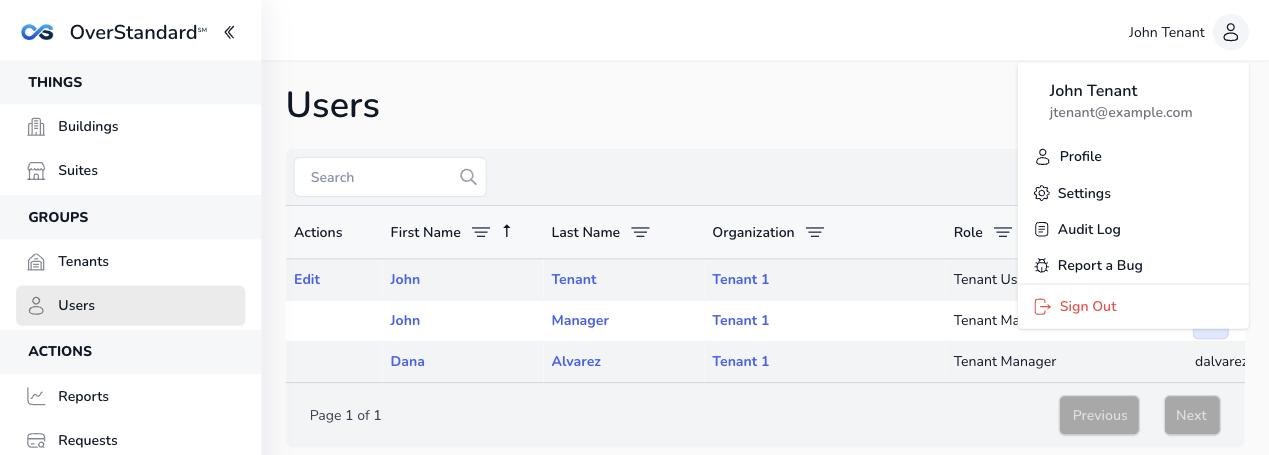
| Item | What it does |
|---|---|
| Profile | Your details, email preferences and the suites you can request for. |
| Settings | Interface preferences. |
| Audit Log | A record of changes you are permitted to view. |
| Report a Bug | Sends a description straight to the OverStandard team. |
| Sign Out | Ends your session. |
Moving the navigation
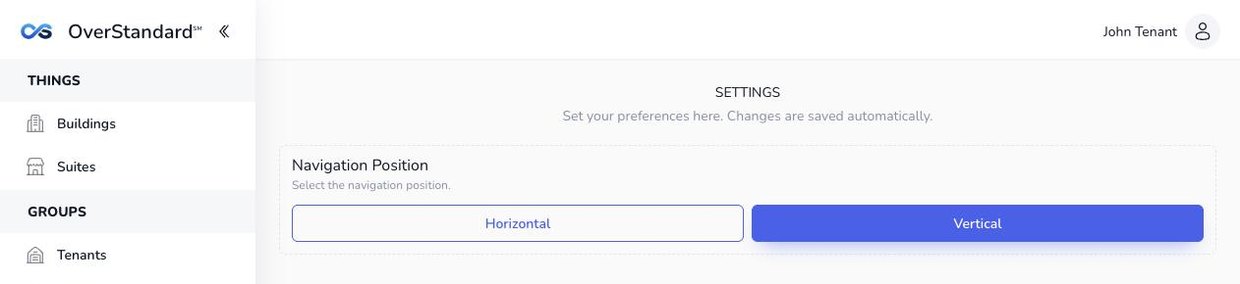
Pick Vertical for the sidebar shown throughout this guide, or Horizontal to move the links into a bar across the top. Nothing else changes: only where the links sit.