 OverStandard
This article is for building teams. It describes the Building User role, held by property-management staff, not by tenants.
Creating a request
The form is the one tenants use: Requests › Add, then Building, Suite, Service, and either a one-time date and time or a recurrence pattern. Two differences apply to you:
- Every suite in the building appears, not just ones you’ve been granted access to.
- A Waive Charge checkbox appears once you’ve chosen a service.
For the field-by-field walkthrough see Creating a one-time request and Setting up a recurring request.
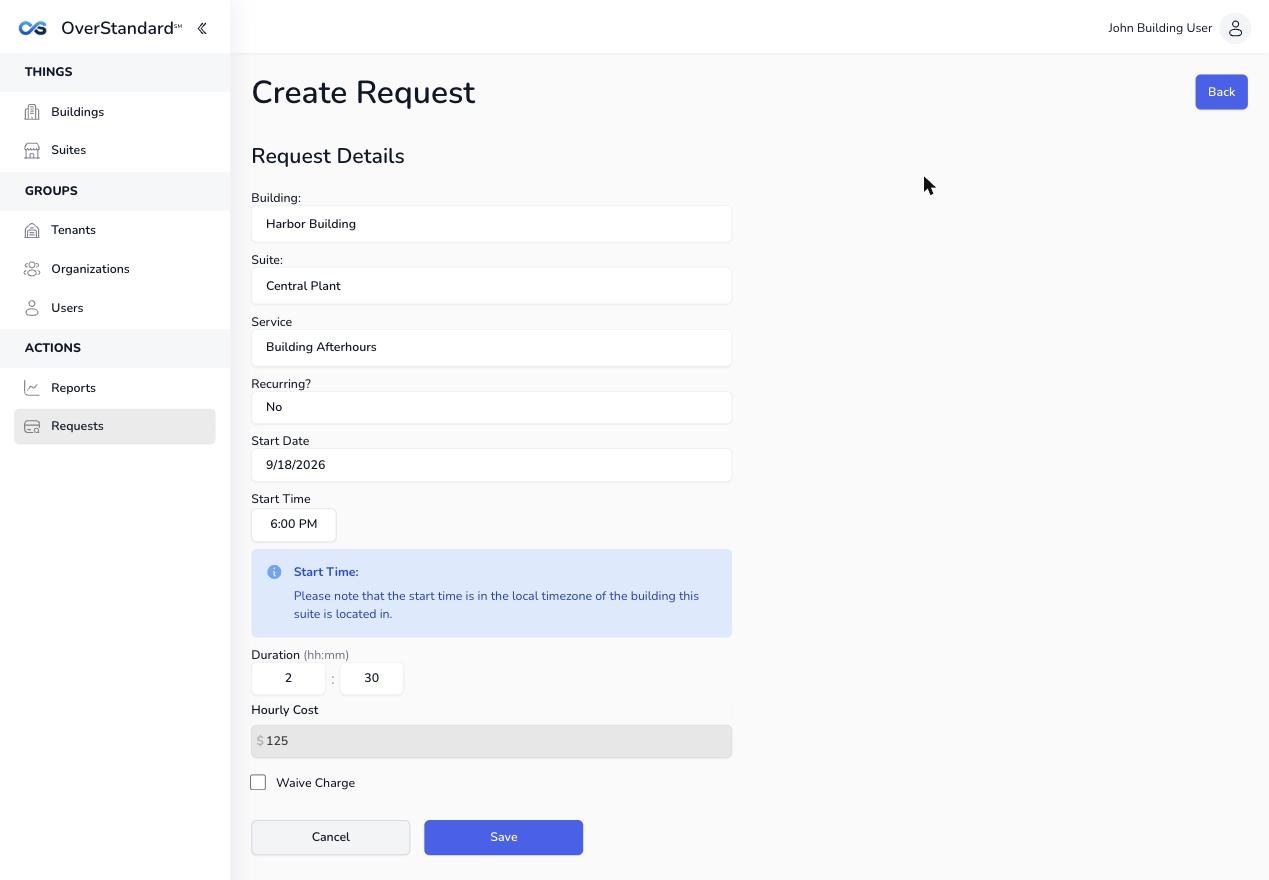
The request is recorded against the suite, with you as the requesting user. It appears in the tenant’s list and in execution history with your name in the User column, so it’s clear who booked it.
Waiving a charge
Waive Charge marks the request as non-billable. Use it for goodwill, for make-goods after a failed run, or for building-initiated work that shouldn’t land on a tenant’s invoice.
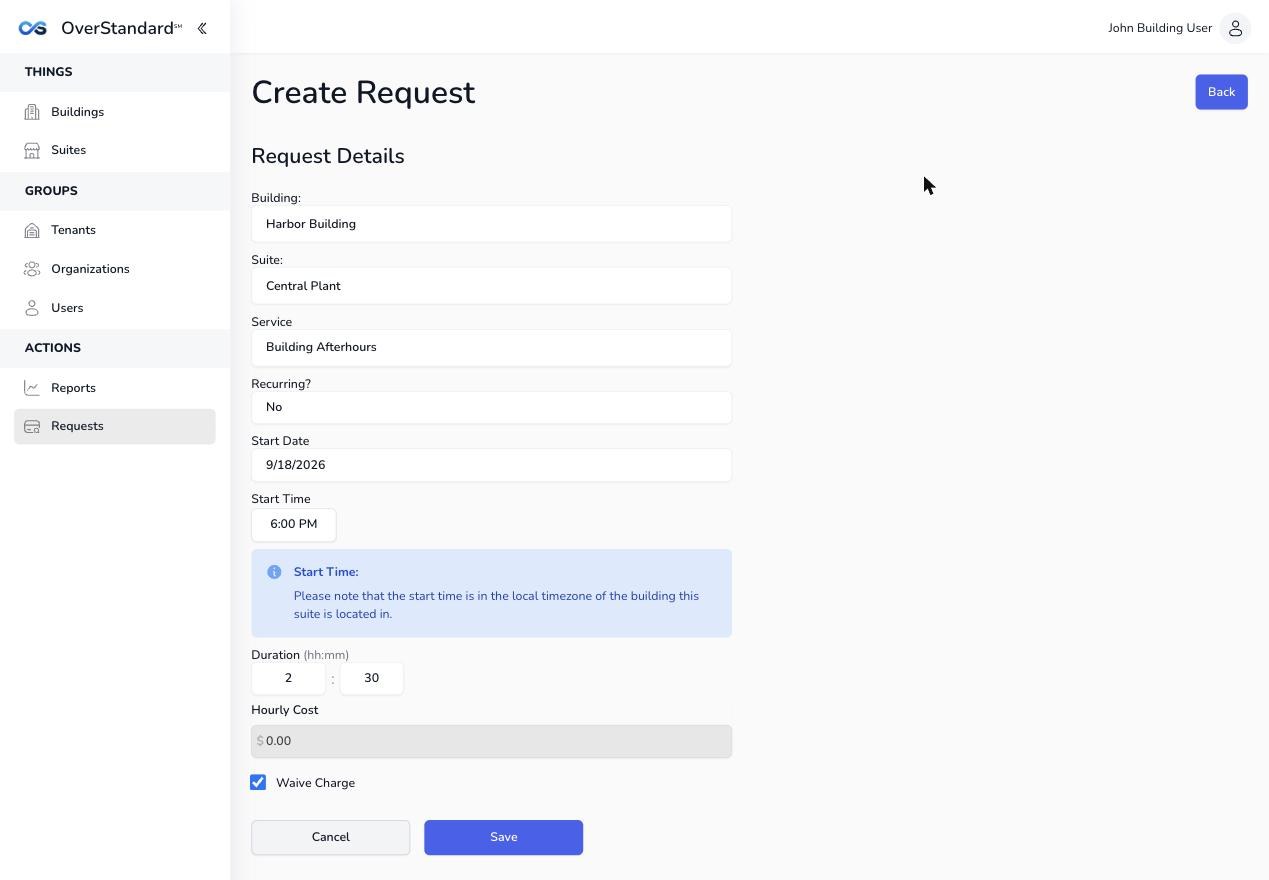
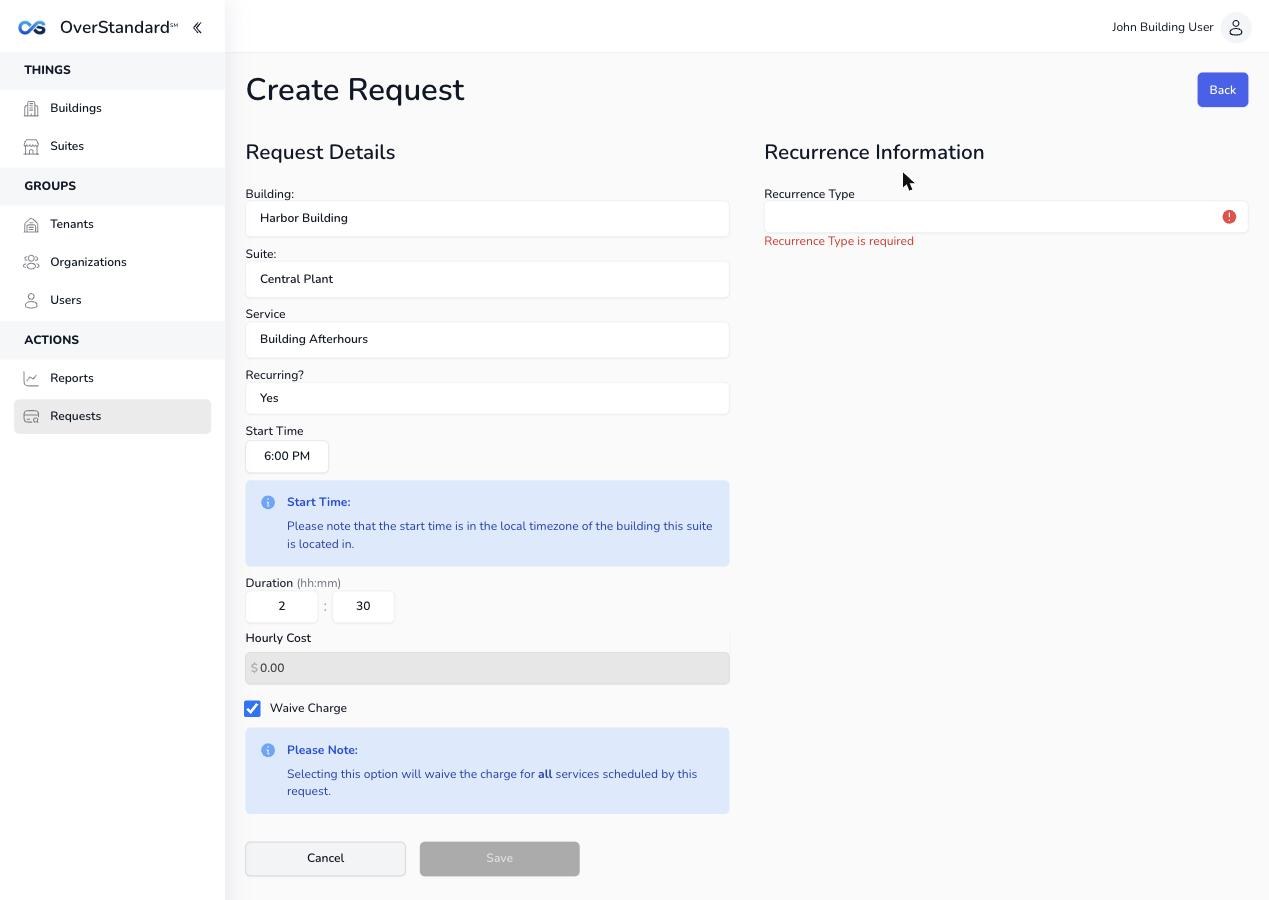
On a recurring request, waiving applies to every occurrence. The form warns you: “Selecting this option will waive the charge for all services scheduled by this request.” If you only mean to waive one night, create a separate one-time request for that night instead.
Tenants never see a Waive Charge control; neither tenant users nor tenant managers have it. If a tenant asks for a charge to be waived, it comes to you or your Property Manager.
Editing and canceling
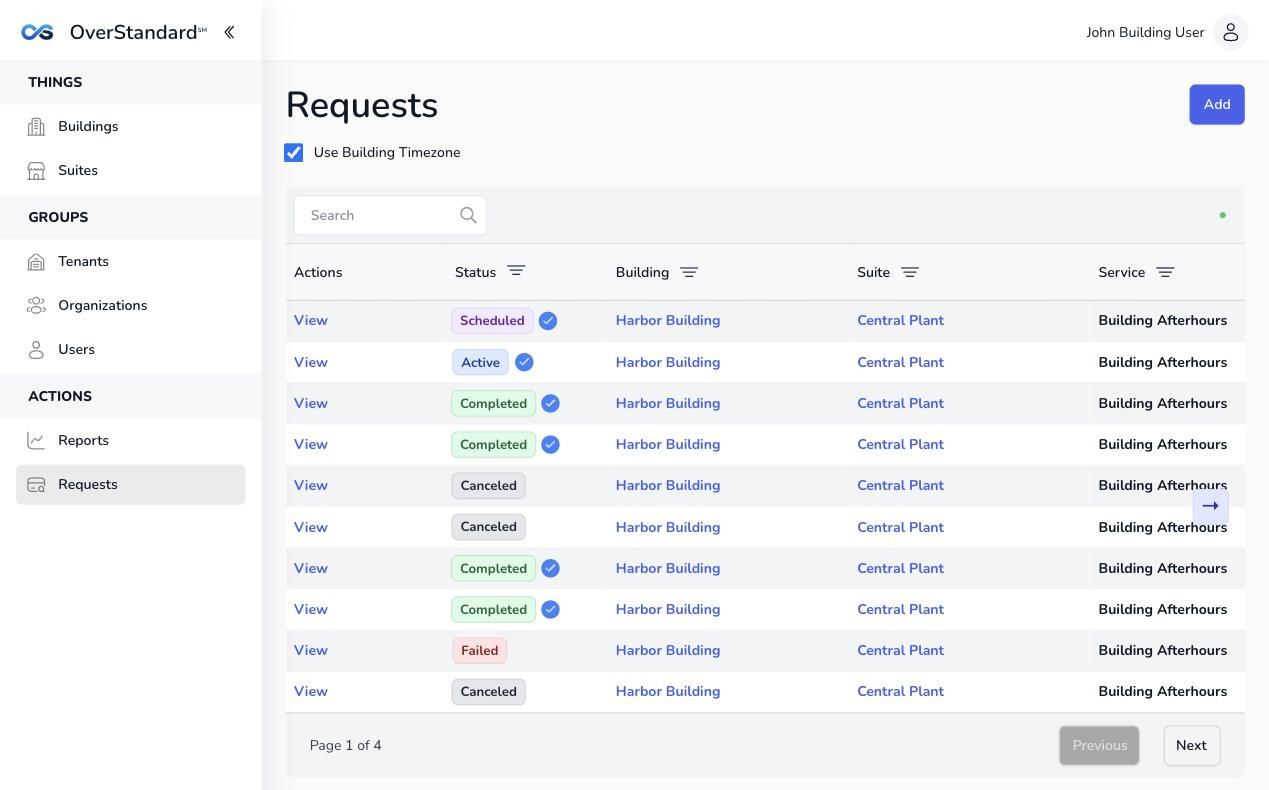
You can edit and cancel your own requests under the usual rules: edit while Scheduled, cancel any time before it finishes. Requests created by tenants are read-only to you; a Property Manager can act on those.
Reports across the building
Reports covers every suite in your building. Check Select All for a whole-building month, or pick suites individually to reconcile one tenant’s invoice. Current Tenant Only is worth knowing about where occupancy changed mid-period. See Running a usage report.